Front
Connect your Front workspace to RipeText for AI-powered conversation insights.
Connect your Front account to RipeText to import conversations, extract insights, and monitor team performance.
Overview
The Front integration lets you:
- Import historical conversations from your Front workspace
- Receive real-time updates via webhooks when new messages arrive
- Analyze conversation quality, topics, and sentiment
Prerequisites
- Admin access to your Front workspace
Connecting Front
You can connect Front in two places:
During Onboarding
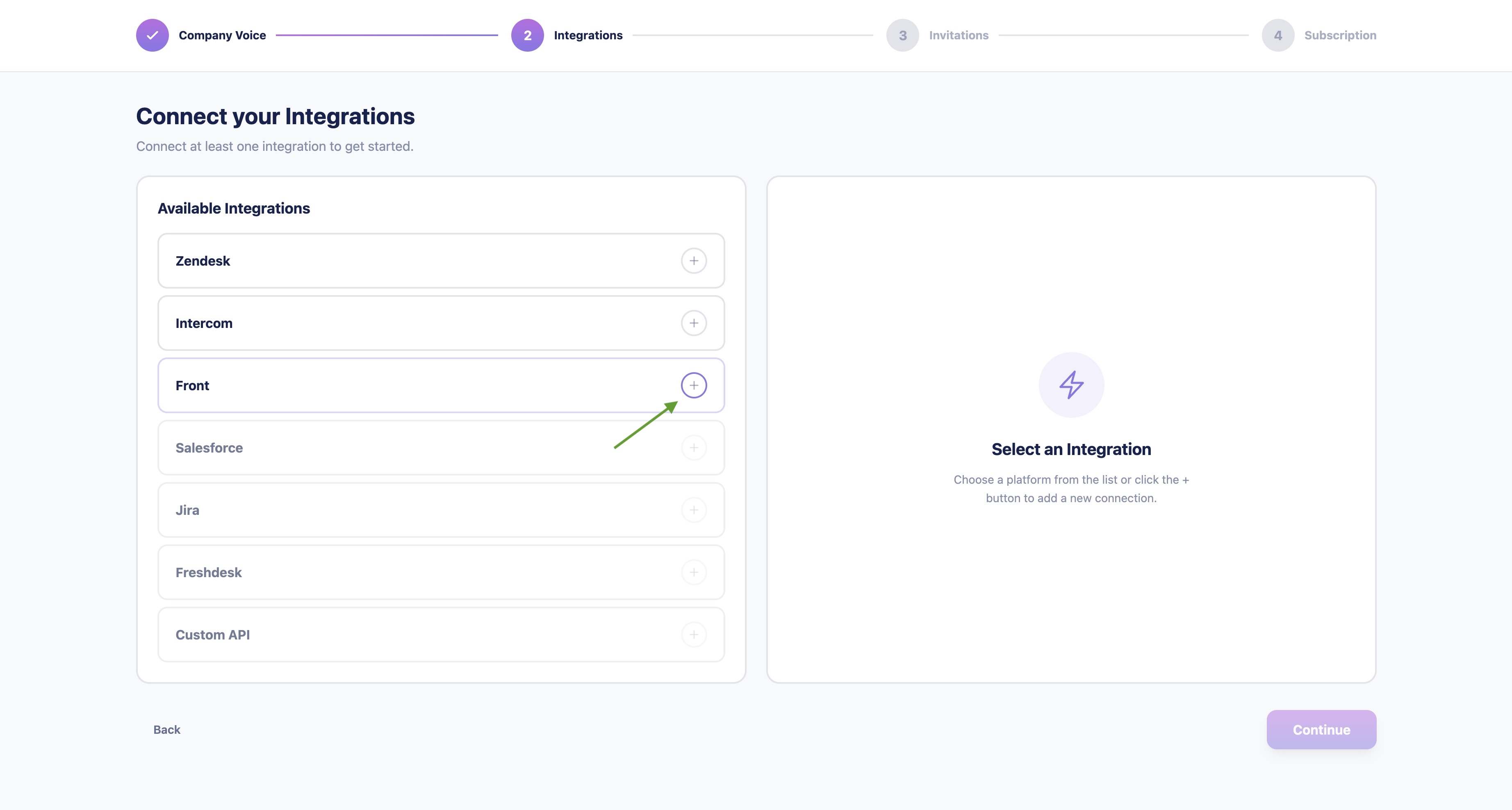
When setting up your RipeText account, you'll be prompted to connect your support platform.
- Click the Add button next to the Front integration.
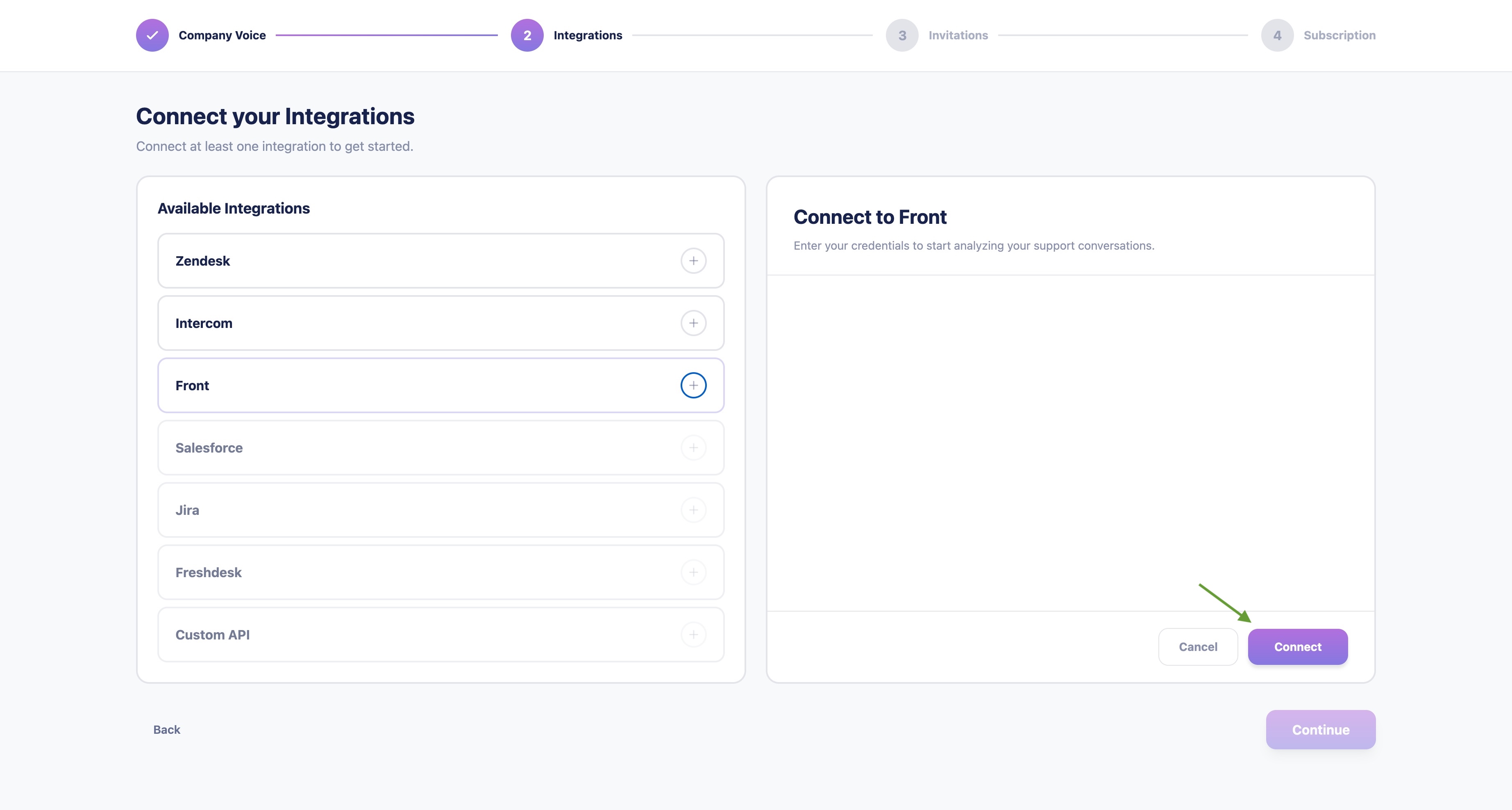
- Click Connect to begin the OAuth flow.
- You'll be redirected to Front's authorization page. Review the permissions and approve access.
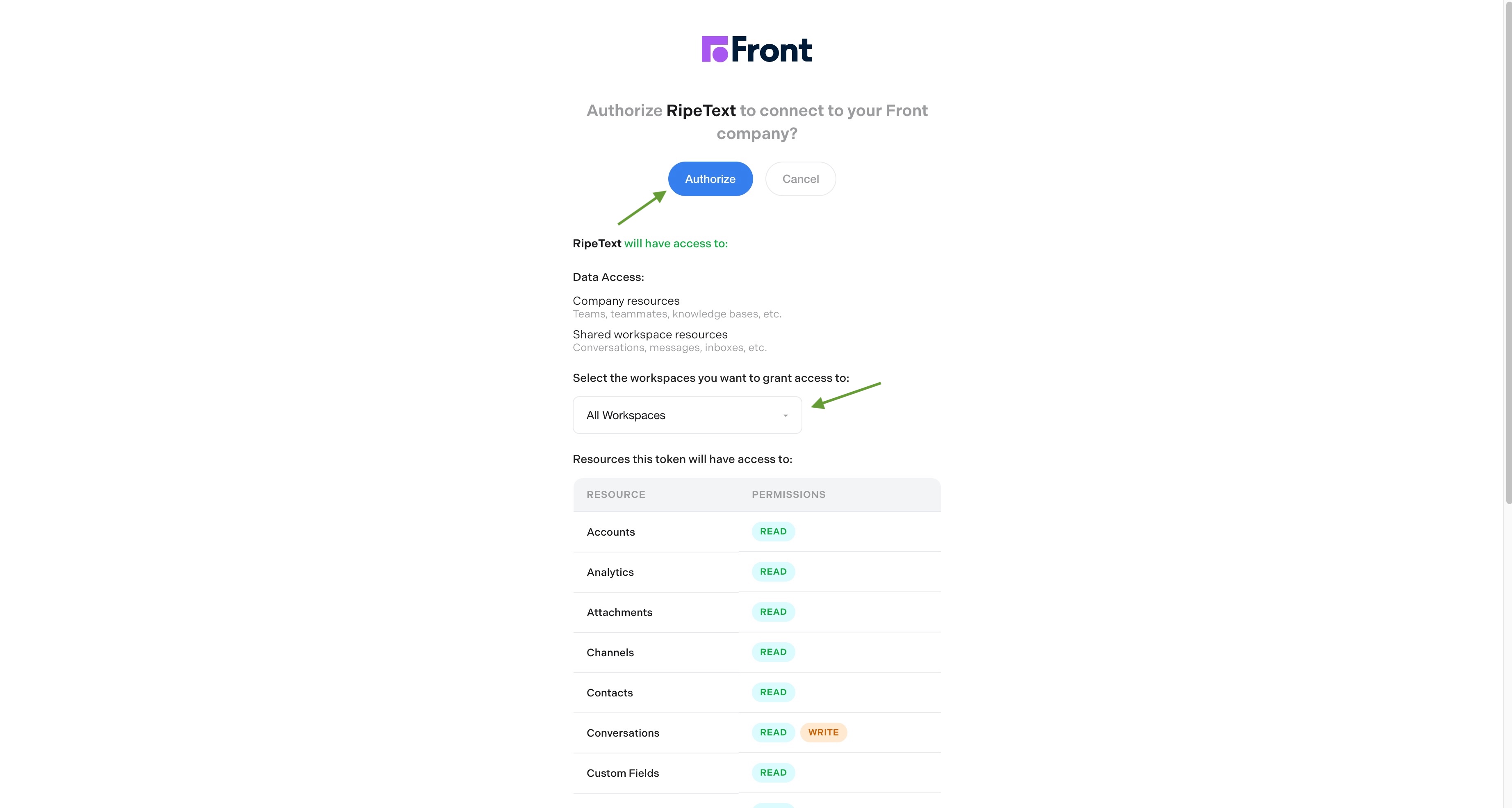
After authorizing Front, RipeText will automatically kick off a historical import of your conversations so insights are ready from the start.
From Settings
Go to Settings → Integrations in your RipeText dashboard.
- Click Connect next to Front.
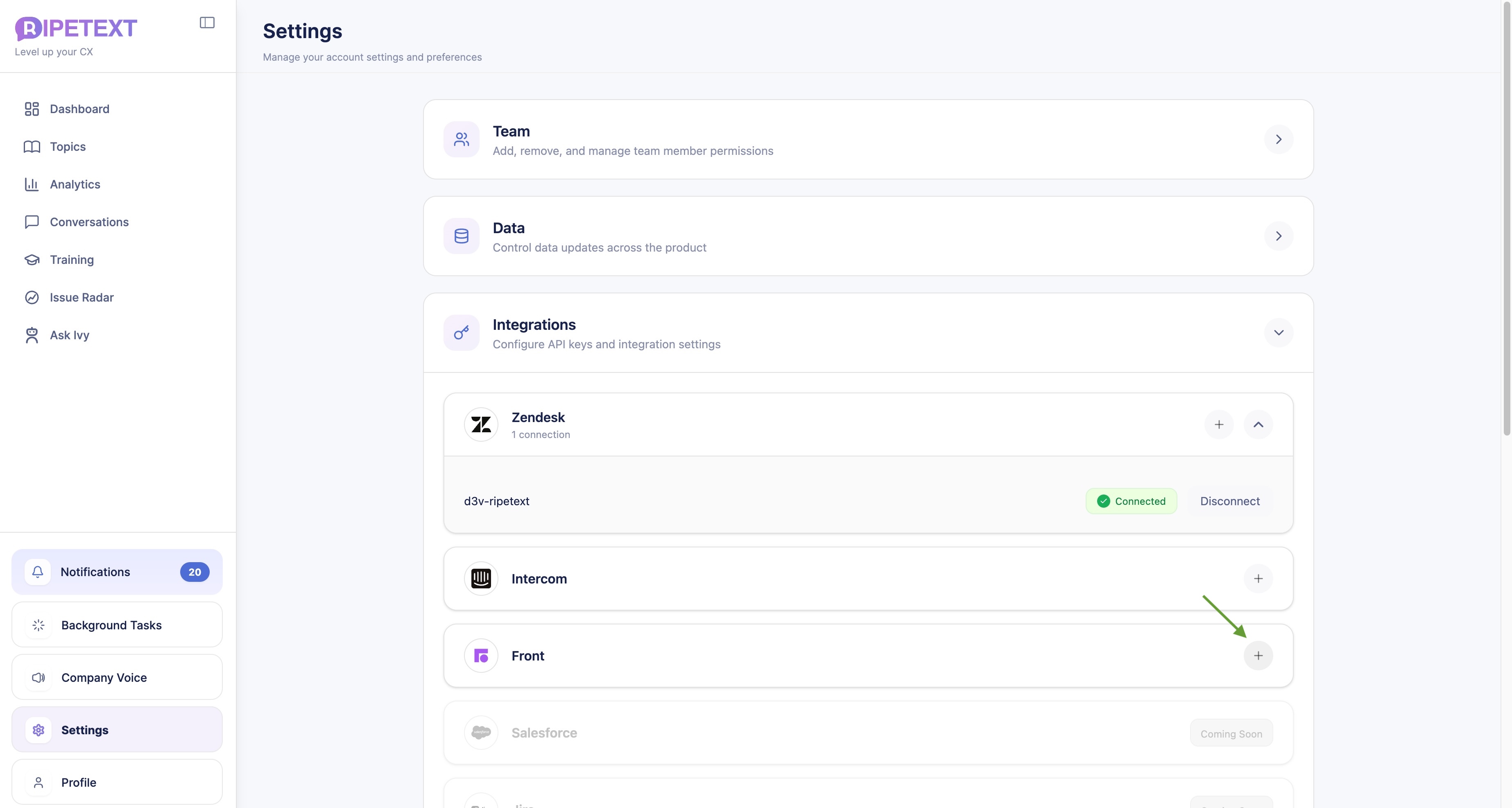
- In the dialog that appears, confirm Front is selected and click Connect & Analyze.
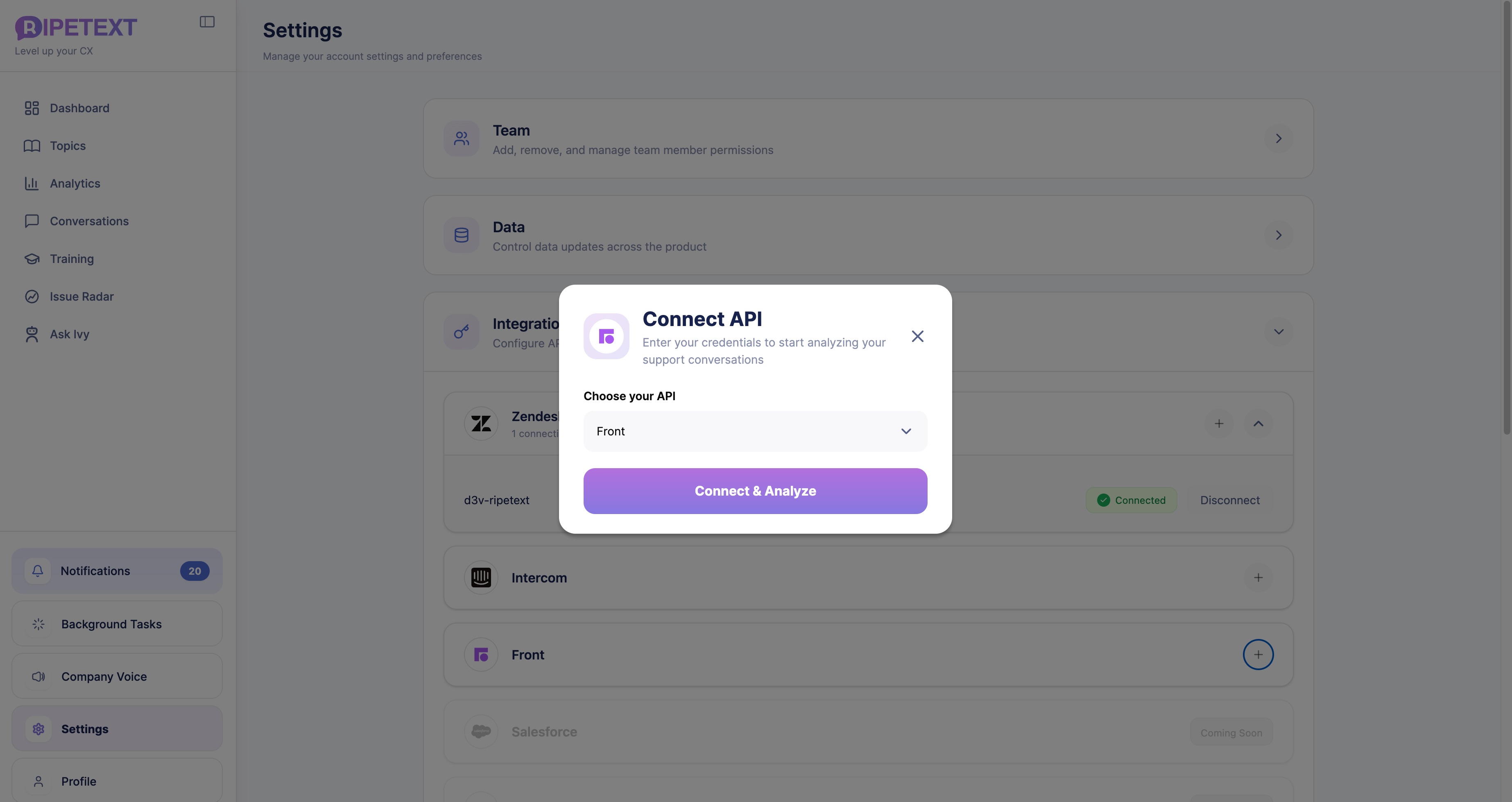
You'll be redirected to Front's OAuth consent screen — review the permissions and approve access to your workspace. If this is the first time connecting Front, a historical import will run automatically.
What Happens After Connecting
- Historical import — RipeText imports your past conversations. Depending on volume, this may take a few minutes to several hours.
- Real-time sync — New conversations and messages are synced automatically via webhooks going forward.
Troubleshooting
Authorization Failed
If the OAuth flow fails, ensure:
- You have admin access to the Front workspace
- Third-party integrations are enabled in Front's settings
- Pop-ups are not blocked in your browser
Missing Conversations
If some conversations aren't appearing:
- Allow up to 30 minutes for the initial import to complete
- Check the integration status in Settings → Integrations