Crisp
Import Crisp conversations into RipeText for AI-powered messaging analytics.
Connect Crisp to RipeText to analyze your live chat conversations and improve team performance.
Overview
The Crisp integration lets you:
- Import conversation history from your Crisp website
- Receive real-time updates when new messages arrive via webhooks
- Analyze conversation topics, sentiment, and response quality
Prerequisites
- Access to your Crisp workspace dashboard
- Ability to install plugins from the Crisp Marketplace
Connecting Crisp
You can connect Crisp in two places:
During Onboarding
When setting up your RipeText account, you'll be prompted to connect your support platform.
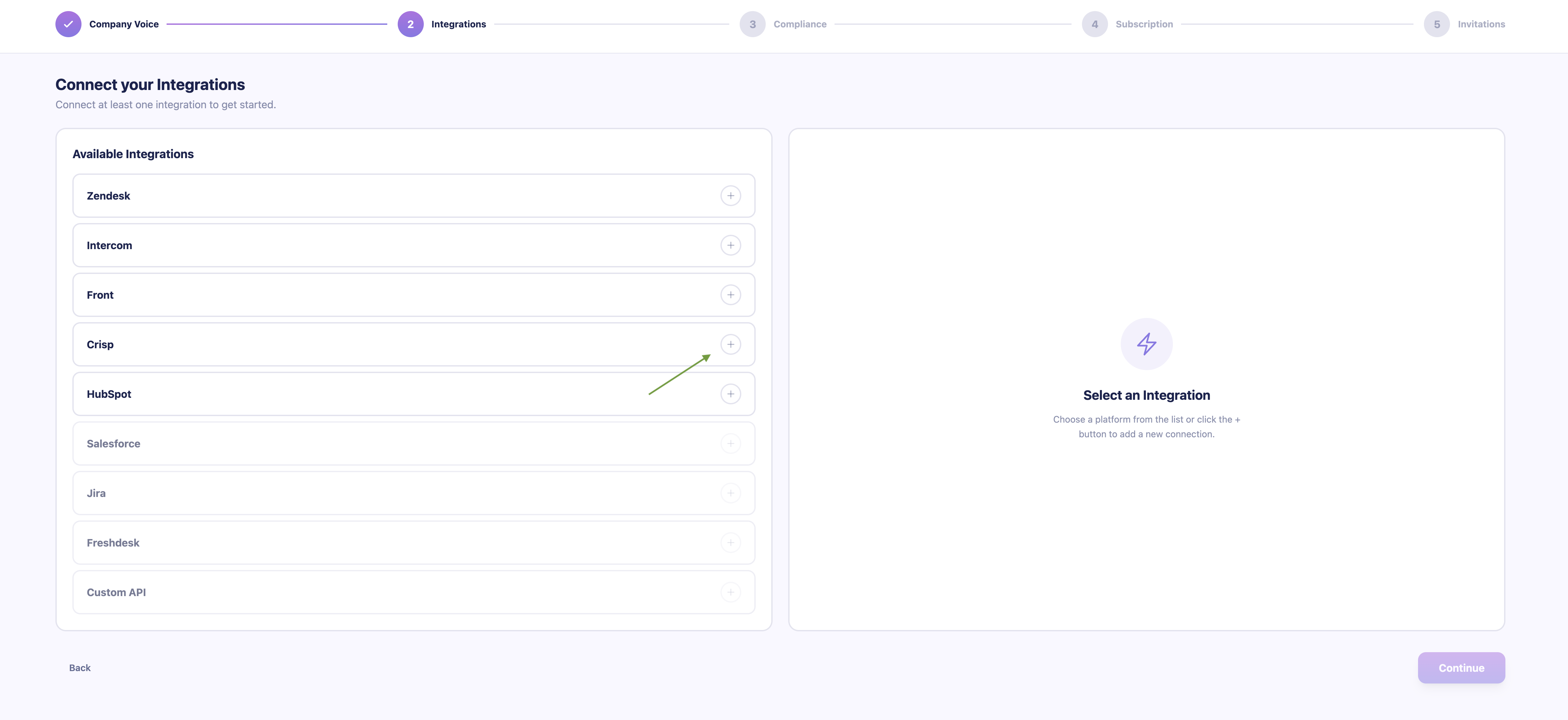
- Click the Add button next to the Crisp integration.
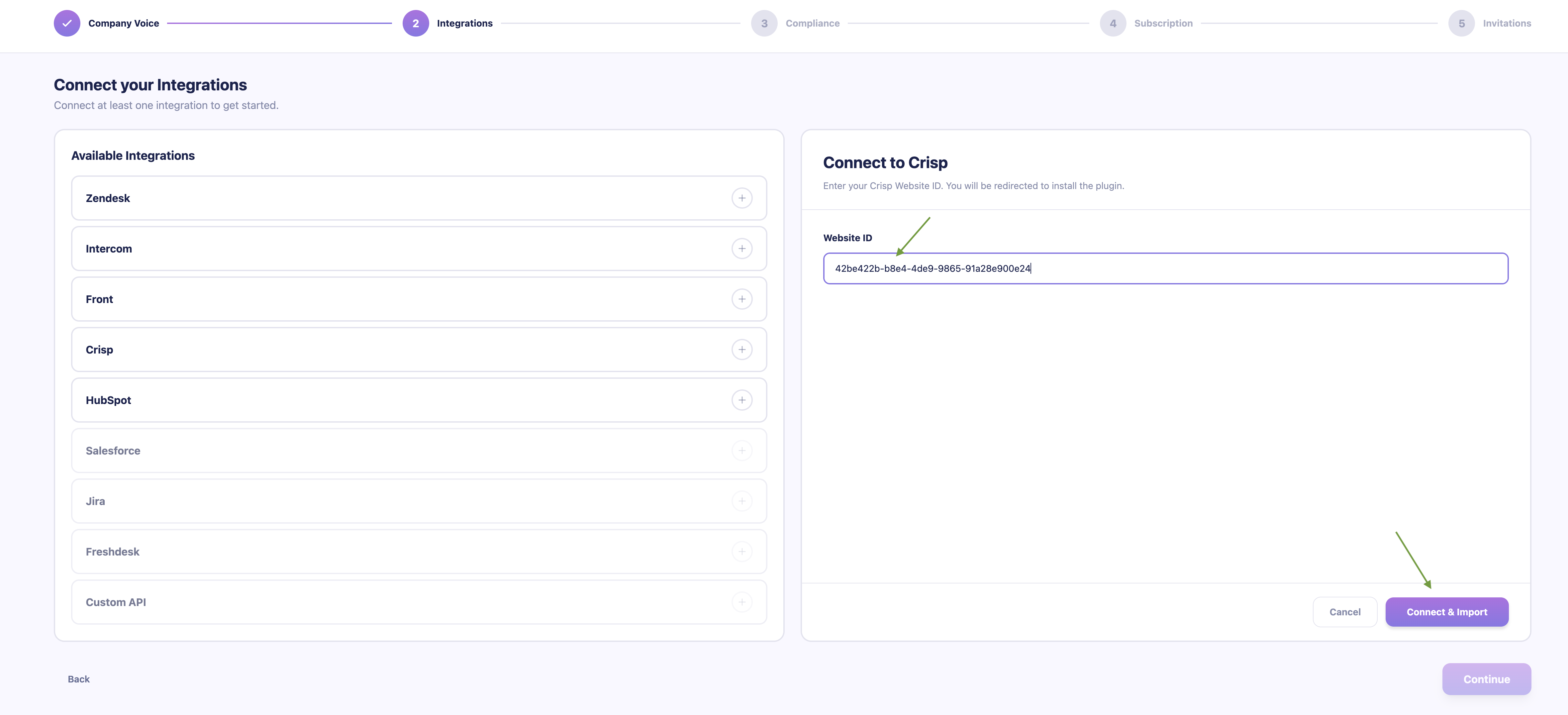
- Add your Website ID and click Connect. You'll be redirected to the Crisp Marketplace to install the RipeText plugin on your website.
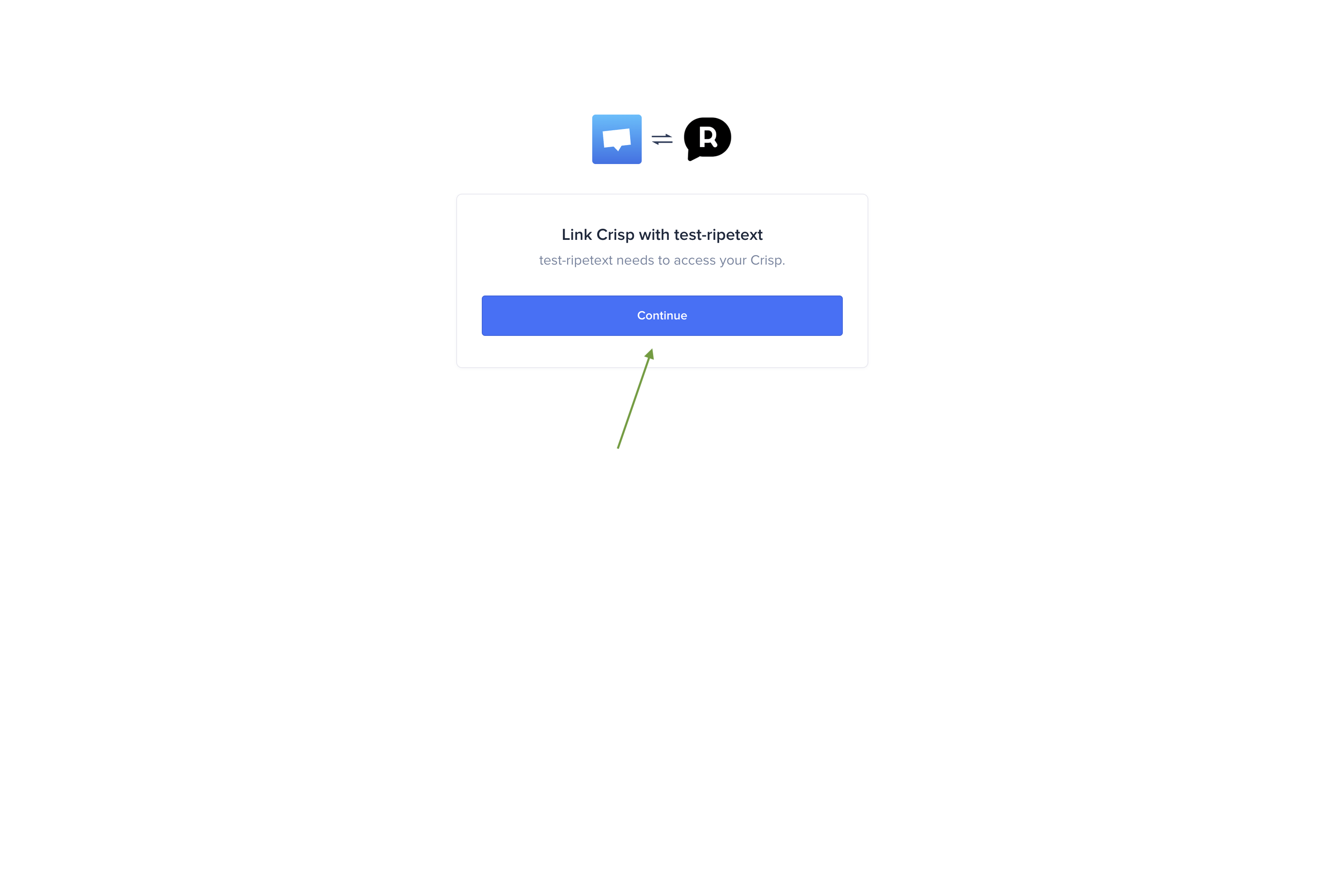
- Approve the plugin installation. You'll be redirected back to RipeText.
After installing the plugin, RipeText will automatically kick off a historical import of your conversations so insights are ready from the start.
From Settings
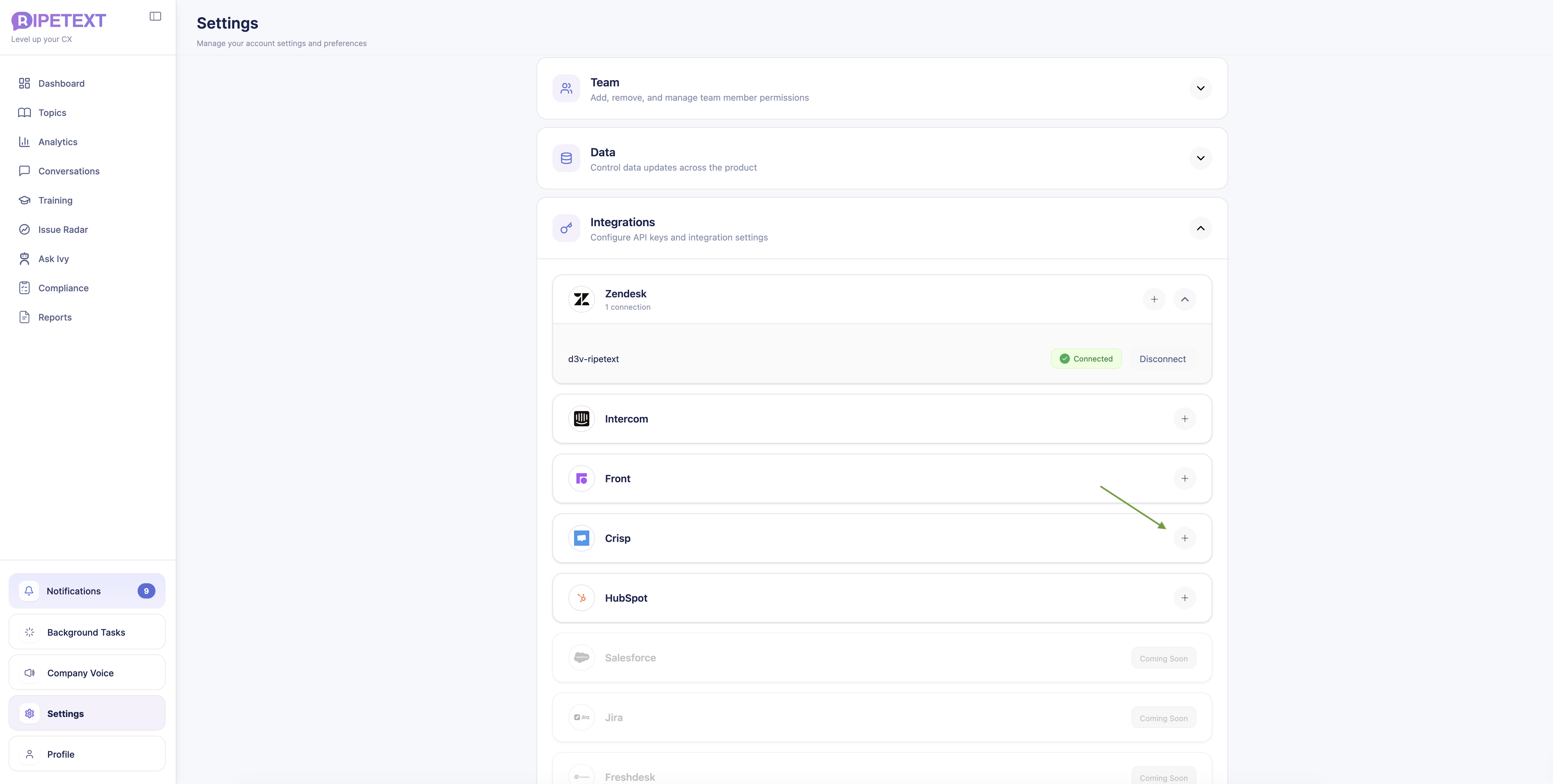
Go to Settings → Integrations in your RipeText dashboard.
- Click Connect next to Crisp.
- In the dialog that appears, add your Website ID and click Connect & Analyze.
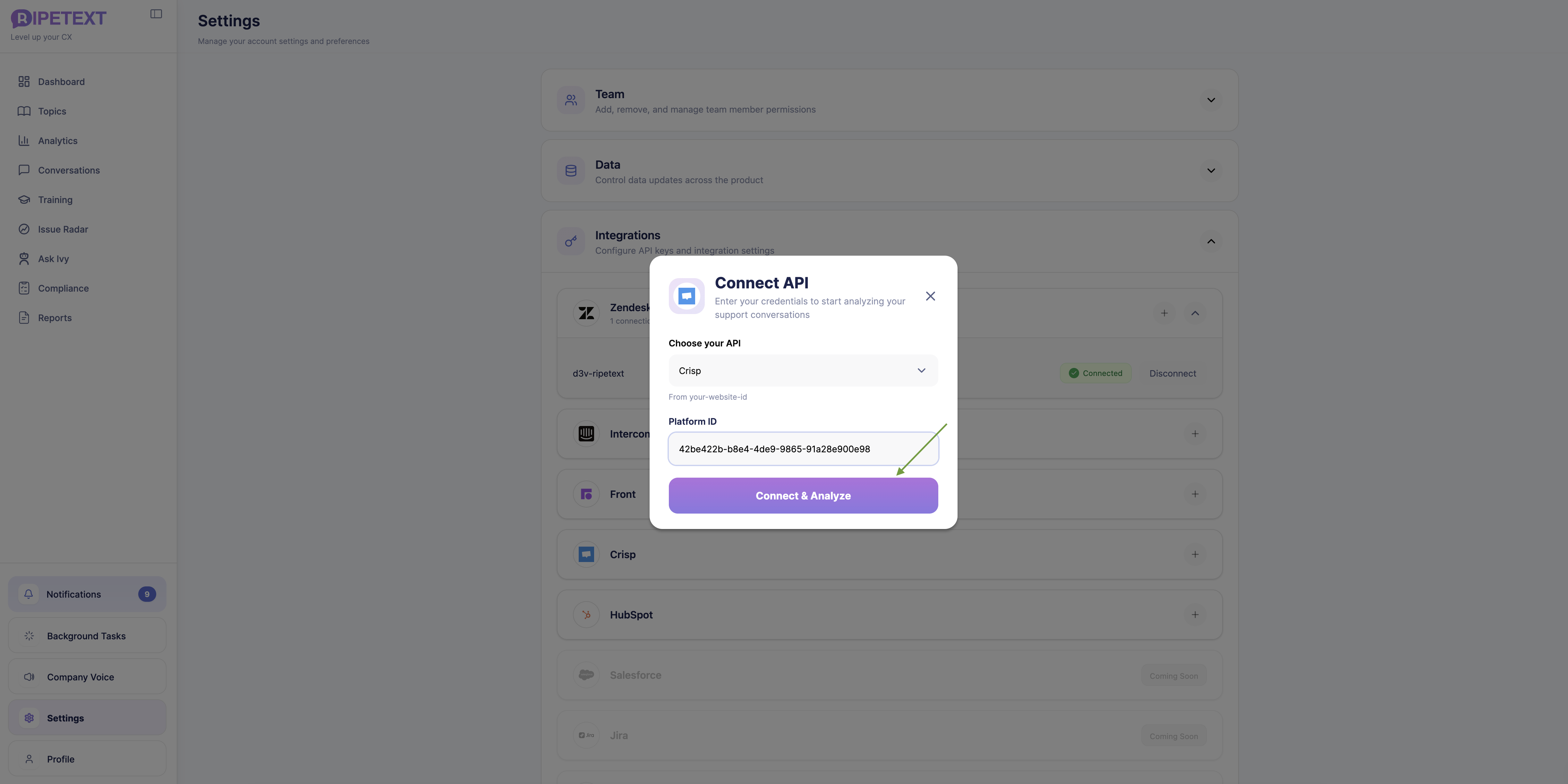
You'll be taken to the Crisp Marketplace to install the RipeText plugin. Once installed, your Crisp website ID is linked automatically. If this is the first time connecting Crisp, a historical import will run automatically.
What Gets Imported
For each conversation, RipeText imports:
- Messages — the full message thread between operators and visitors
- Metadata — conversation state, segments/tags, and subject lines
- People — visitor profiles, associated companies, and assigned operators
What Gets Imported
For each conversation, RipeText imports:
- Messages — the full message thread between operators and visitors
- Metadata — conversation state, segments/tags, and subject lines
- People — visitor profiles, associated companies, and assigned operators
What Happens After Connecting
- Historical import — RipeText imports your past conversations. Depending on volume, this may take a few minutes to several hours.
- Real-time sync — New messages and conversations are synced automatically via webhooks going forward.
Troubleshooting
Plugin Installation Failed
If you can't install the RipeText plugin:
- Verify you have permission to install plugins in your Crisp workspace
- Ensure your Crisp plan supports third-party plugin integrations
- Try clearing your browser cache and attempting the installation again
Missing Conversations
If some conversations aren't appearing:
- Allow up to 30 minutes for the initial import to complete
- Only conversations with at least one message are imported
- Check the integration status in Settings → Integrations
Webhooks Not Firing
If new messages aren't syncing in real time:
- Verify the RipeText plugin is still active on your Crisp website
- Try disconnecting and reconnecting the integration from Settings → Integrations